Have you ever come across traders showing PainX indices on MT5 and wondered how they managed to access these instruments? You may have searched through your MT5 application, tried adding different symbols, and still couldn’t find the PainX indices you’re looking for.
The good news is that you don’t need a complicated setup to get started. Once you have the right trading account and connect it properly to MT5, you can access and add the available PainX indices to your Quotes tab.
In this guide, I’ll show you how to set up a PainX indices trading account on Weltrade, connect the account to MetaTrader 5 (MT5), and add PainX instruments such as PainX 400, PainX 600, PainX 800, PainX 999, and PainX 1200 to your MT5 application.
I’ll take you through the entire process step by step, from creating your Weltrade account to adding the PainX indices and opening their charts.
What You Need to Trade PainX Indices on MT5
Before you can add PainX indices to your MT5 application, you need to have a synthetic indices trading account with Weltrade.
The process involves three main steps:
- Sign up for a Weltrade account.
- Create a synthetic indices trading account.
- Connect the account to MT5 and add the PainX instruments.
You can use either a demo account or a real trading account, depending on whether you want to practice or trade with real funds.
Here is a video tutorial on how to set up Painx Indices on MT5:
How to Set Up a PainX Indices Account On MT5
Here are step-by-step instructions on how to Set Up PainX indices account On MT5;
Step 1: Sign Up on Weltrade
The first thing you need to do is create an account with Weltrade if you don’t already have one.
If you haven’t signed up yet, use this Weltrade registration link. After completing the registration process, log in to your Weltrade account.
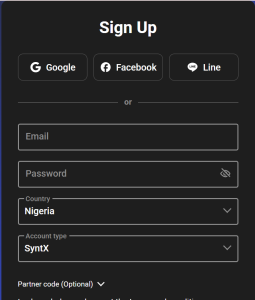
Once you log in, you’ll be taken to your account dashboard. This is where you can create the synthetic indices trading account required to access PainX indices.
Step 2: Create a Synthetic Indices Trading Account
After logging into your Weltrade account, make sure you are on the dashboard.
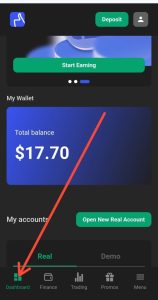
From the dashboard, scroll down until you find the My Account section. Here, you should see options for both Real and Demo accounts.
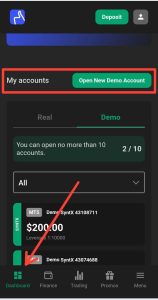
If you want to practice trading PainX indices without risking real money, you can create a demo account. If you want to trade with real funds, you’ll need to create a real account and complete the required verification process.
For this demonstration, we’ll use a demo account.
Open a New Demo Account
Once you are in the Demo section:
- Click Open New Demo Account.
- You will be taken to the account setup page.
- Under Platform, select MT5.
- Under Account Type, select the SyntX account.
- Leave the account currency as USD.
- Select your preferred demo balance.
- Choose the available leverage.
- Click Open Account.
The SyntX account is important because this is the account type that houses the synthetic indices instruments offered by Weltrade, including the PainX indices.
Choosing Your Demo Balance
When selecting your demo balance, it is better to choose an amount that reasonably reflects what you could afford to deposit into a real account.
For example, if you expect that you could deposit around $200 when you eventually move to a real account, you can use $200 as your demo balance.
This gives you a more realistic environment for practicing your trading and risk management.
After filling in the required information, click Open Account.
Weltrade will create the synthetic indices trading account and provide you with the MT5 login details. These details are also sent to the email address associated with your Weltrade account.
Step 3: Connect Your Weltrade Account to MT5
After creating the synthetic indices account, the next step is to connect it to your MT5 application.
First, open the MetaTrader 5 (MT5) application on your device.
Open Manage Accounts
Once MT5 is open:
- Click the menu icon at the top-left corner.
- Select Manage Accounts.
- Click the + button at the top-right corner.
- Search for Weltrade.
- Select Weltrade Limited.
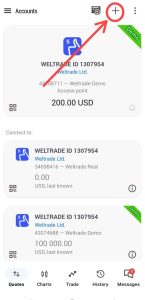
You will then be asked to enter your MT5 login information.
Enter Your MT5 Login Details
Weltrade provides the following information when you create the synthetic indices account:
- MT5 Login ID
- MT5 Password
- Server
Copy your login ID and password from the details provided by Weltrade and enter them into the appropriate fields in MT5.
You can also check the email address you used when registering with Weltrade if you need to retrieve your MT5 login information.
Since the account in this demonstration is a demo account, select Weltrade Demo as the server.
If you are connecting a real synthetic indices account, select the appropriate Weltrade Real server.
After entering all the required information, click Login.
If the details are correct, MT5 will connect to your Weltrade synthetic indices account.
Step 4: Add PainX Indices to the MT5 Quotes Tab
Now that your Weltrade synthetic indices account is connected to MT5, you can add the PainX instruments you want to trade.
Start by navigating to the Quotes tab in MT5.
Once you’re in the Quotes section:
- Click the + button at the top-right corner.
- Select Synthetic Indices.
- Scroll through the list of available instruments.
- Look for the PainX (PX) indices.
- Select the instruments you want to add.
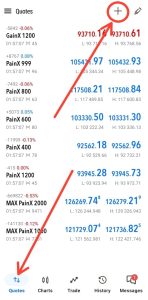
For this setup, the instruments include:
- PainX 400
- PainX 600
- PainX 800
- PainX 999
- PainX 1200
Select each PainX instrument you want to trade.
After selecting them, go back to your Quotes tab.
You should now see the PainX instruments you selected listed alongside the other instruments available on your MT5 account.
Step 5: Open a PainX Chart and Start Your Analysis
Once the PainX indices have been added to your Quotes tab, you can open any of them to view its chart.
Simply:
- Tap the PainX instrument you want to trade.
- Select Chart.
- Analyze the price movement.
- Apply your preferred technical analysis tools.
- Place your trade when your trading strategy gives you a valid setup.
The process of analyzing the PainX indices is similar to how you analyze other instruments available on MT5.
You can use your preferred technical indicators, draw trendlines, identify support and resistance levels, and apply whatever technical analysis approach you normally use.
However, make sure you understand the characteristics and risks of synthetic indices before trading them with real money.
Can You Trade PainX Indices on a Demo Account?
Yes. The process demonstrated in this guide uses a Weltrade synthetic indices demo account, which allows you to practice adding and trading the instruments on MT5 without using real funds.
This can be useful if you are new to PainX indices and want to become familiar with the instruments and MT5 interface before considering a real account.
When you’re ready to trade with real funds, you’ll need to create a real synthetic indices account, complete the required account verification, fund the account, and connect it to MT5 using the appropriate real-account login details.
Conclusion
Adding PainX 400, PainX 600, PainX 800, PainX 999, and PainX 1200 to MT5 starts with creating the appropriate synthetic indices trading account with Weltrade.
Once your account is created, you simply connect it to MT5 using the login details provided by Weltrade and then add the PainX instruments through the Quotes → + → Synthetic Indices section.
If you’re completely new to these instruments, I recommend starting with a demo account so you can familiarize yourself with the platform and practice your strategy before trading with real money.
If you have any questions about setting up your PainX indices account or adding the instruments to MT5, feel free to leave a comment below.

Hello, I’m Alexander, the writer and founder behind Synthetic Giant.
I am a seasoned forex and synthetic indices trader with years of hands-on experience in the financial markets, including cryptocurrency, forex, and stocks. Over time, I’ve gained a strong understanding of how different markets work, and I’ve developed a passion for helping others navigate them.
In addition to trading, I have a strong background in writing and research. This combination inspired me to create Synthetic Giant — a platform dedicated to providing traders with tips, strategies, broker reviews, and step-by-step guides on synthetic indices.
My goal is simple: to help beginners and experienced traders alike gain the knowledge they need to trade synthetic indices confidently and profitably.
When I’m not trading or writing, I’m often exploring new ways to simplify financial concepts and share them with my audience in clear, practical terms.
For inquiries, feel free to reach me at admin@syntheticgiant.com
.