Have you been seeing people trade crash indices on MT5 and wondering how to add these instruments to your own trading account?
In this guide, I’ll show you how to create a Deriv trading account that supports synthetic indices, connect it to the MT5 mobile application, and add Crash 1000, Crash 500, Crash 300, Crash 600, Crash 900, Crash 100 and Crash 200 to your Quotes tab so you can view their charts and trade them.
Crash indices are synthetic trading instruments available through Deriv. To access them on MT5, you need to create a compatible trading account with Deriv and connect it to the MetaTrader 5 application, and in this blog post, I am going to show you how to do just that.
The process involves three main steps:
- Creating a Deriv trading account that supports synthetic indices
- Connecting your Deriv account to the MT5 mobile app
- Adding crash indices to the MT5 Quotes tab
Let’s get started.
Here is a video tutorial on how to add any crash indices instrument on MT5
How to Create a Deriv Account for Crash Indices
Before you can trade Crash indices on MT5, you first need to sign up with Deriv and create a trading account that supports synthetic indices.
If you don’t already have a Deriv account, you can register using this signup link.
1. Sign Up on Deriv
Visit the Deriv registration page using the link in the video description.

Once you open the registration page, select your country of residence and click Sign Up.
You will then be given different options for creating your account.
You can sign up using:
- Google account
- Facebook account
- Apple account
Alternatively, you can enter your email address manually and complete the email verification process.
If you choose to register using your email address, enter it in the appropriate field and click Next.
Follow the instructions to verify your email address and complete your registration.
Once you have successfully signed up, log in to your Deriv account.
If you already have a Deriv account, you can skip this step and proceed directly to your dashboard.
How to Create a Synthetic Indices Trading Account on Deriv
After logging in to your Deriv account, the next step is to create a trading account that supports crash indices and other synthetic indices.
Deriv provides different trading account options, but you need to select the appropriate account type for the instruments you want to trade.
1. Navigate to the Available Accounts Section
From your Deriv dashboard, locate the CFDs section at the bottom-left corner of the page.
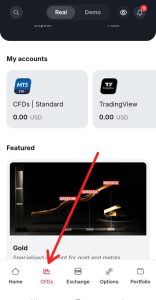
You should see your existing trading accounts and the available account options you can create.
Depending on the options available on your dashboard, you may see account types such as:
- CFD Standard
- Swap-Free
- Financial
- cTrader
- Zero Spread
2. Select the CFD Standard Account
If you want to trade crash indices and other synthetic indices through Deriv MT5, select the CFD Standard account.
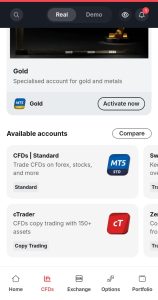
Click on CFD Standard to open its account details page.
This account supports several markets, including:
- Forex
- Stock indices
- Cryptocurrency
- Synthetic indices
- Stocks
- Commodities
- Exchange-traded funds (ETFs)
- Basket indices
Since our goal is to trade crash indices, this CFD is the perfect option because it contains the synthetic index instruments offered by Deriv.
3. Review the Account Specifications
Before activating your account, review the trading conditions displayed on the account information page.
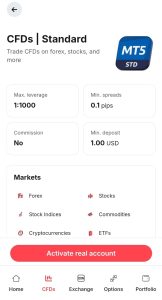
In the page, the displayed account specifications include:
- Maximum leverage: Up to 1:1,000.
- Spread: From 0.1 pips.
- Commission: No commission.
- Minimum deposit: $1.
These are the specifications shown during the recording and may change. Always check Deriv’s current account conditions before opening or funding a trading account.
Remember that leverage can magnify both profits and losses. Trading synthetic indices involves risk, and you should understand the account conditions before trading with real money.
4. Activate Your Real Trading Account
Once you have reviewed the account specifications, click Activate Real Account.
You will then be prompted to create a password for your Deriv MT5 trading account.
This password is important because you will need it when connecting your account to the MT5 application.
Enter a password that you can remember and keep it somewhere secure.
Once your account has been successfully created, you should see the CFD Standard account added to your trading accounts.
You can now proceed to connect it to MT5.
How to Get Your Deriv MT5 Login Details
Before connecting your Deriv account to MT5, you need to obtain the login details associated with your newly created trading account.
These details allow the MT5 application to connect to the correct Deriv trading server.
1. Open Your CFD Standard Account
From your Deriv dashboard, locate the CFD Standard account you just created.
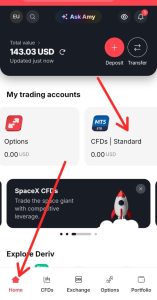
Click on the account to open its details.
2. Click on Details
On the account page, select Details.
Deriv will display the information required to connect your account to MetaTrader 5.
The details include:
- Broker: Deriv
- Server: The server assigned to your account
- Login ID: Your MT5 account number
- Password: The password you created for your MT5 account
In my case, the server is Deriv SVG, and the account details provide the login ID associated with that server.
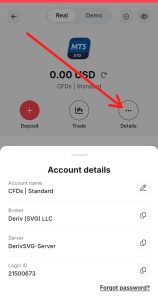
Your own server may differ, so make sure you use the exact server assigned to your account.
3. Copy Your MT5 Login ID
Copy your MT5 login ID from the account details page.
You will need it when connecting your Deriv account to the MT5 mobile application.
Also, make sure you remember the MT5 password you created during account activation.
Keep your login details secure and do not share your password with anyone.
How to Connect Your Deriv Account to MT5
Now that you have created your synthetic indices trading account and obtained your login details, the next step is to connect the account to the MetaTrader 5 mobile application.
1. Open the MT5 app.
Open the MetaTrader 5 (MT5) application on your phone.
From the MT5 home screen, locate the menu icon at the top-left corner of the page.
Tap the menu icon and select Manage Account.
This will take you to the account management section of the MT5 application.
2. Tap the Plus Button.
On the Manage Account page, locate the + button at the top-right corner.
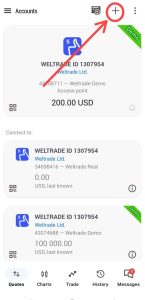
Tap it to add a new trading account.
You will then be given the option to search for a broker.
3. Search for Deriv
In the broker search field, type Deriv.
You should see different Deriv server options.
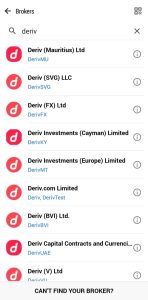
The server that my account was tagged to is Deriv SVG LLC, so I will select Deriv SVG LLC.
Make sure you select the correct server because your login details may not work if you choose a different server.
4. Enter Your MT5 Login Details
After selecting the appropriate server, enter the login information you obtained from your Deriv dashboard.
You will need to provide:
- Login: Your Deriv MT5 login ID
- Password: Your MT5 account password
- Server: The correct Deriv server
Enter your login ID and password carefully.
If the server selected automatically is different from the one displayed in your Deriv account details, you can switch to the correct server.
5. Log In to Your Account
After entering your login details, tap Login.
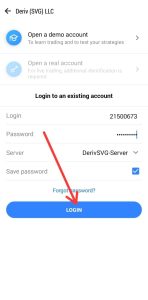
If your details are correct and the server is available, MT5 should connect to your Deriv synthetic indices trading account.
You can confirm that the connection is successful by checking your account information and connection status in the application.
Your Deriv account is now connected to MT5, and you can proceed to add the Crash indices you want to trade.
How to Add Crash Indices to the MT5 Quotes Tab
Once your Deriv account is connected to MT5, the next step is to add the Crash indices to your Quotes tab.
This is where you can select the instruments you want to monitor and access their charts.
1. Open the Quotes Tab.
From your MT5 mobile application, navigate to the Quotes tab.
If you have not added any instruments yet, you may see a blank screen.
This is normal.
You can now add Crash indices and other synthetic indices supported by your Deriv account.
2. Tap the Plus Button
At the top-right corner of the Quotes tab, tap the + button.
You will see a list of available instrument categories.
Locate and select Crash Boom Indices.
This category contains the Crash and Boom instruments available through your connected Deriv account.
3. Find the Crash Indices You Want to Add
After selecting Crash Boom Indices, you will see the different instruments available.
Scroll through the list until you find the crash indices.
You can then tap the + button beside each instrument you want to add to your Quotes tab.
The available crash indices instrument includes
- Crash 1000
- Crash 900
- Crash 600
- Crash 500
- Crash 300
- Crash 200
- Crash 150
- Crash 100
- Crash 99
- Crash 50
The exact instruments displayed may depend on the account and the instruments currently supported by Deriv.
For this guide, our main focus is on Crash 1000, Crash 500, Crash 300, Crash 600, Crash 900, Crash 100 and Crash 200.
Tap the plus button beside each of these instruments to add them to your MT5 Quotes tab.
4. Confirm That the Crash Indices Have Been Added
After selecting your preferred instruments, return to the Quotes tab.
You should now see the Crash indices you selected displayed in the list.
From here, you can open any of the instruments to view its chart.
How to Open Crash 1000, Crash 500 and Other Crash Indices Charts on MT5
After adding your preferred Crash indices to the Quotes tab, you can open their charts to view price movements.
For example, if you want to view Crash 1000, locate it in the Quotes tab and tap the instrument.
A menu will appear with different options.
Select Chart to open the Crash 1000 chart.
You can repeat the same process for:
- Crash 500
- Crash 300
- Crash 600
- Crash 900
- Crash 100
- Crash 200
Once the chart opens, you can use MT5’s charting tools and technical indicators to analyze price movements.
You can also switch between the different Crash indices from your Quotes tab.
If you decide to place a trade, select the appropriate trading option and review the order details carefully before confirming it.
Important: Crash indices are volatile synthetic instruments. Trading CFDs with leverage involves a substantial risk of losing money. Consider practising on a demo account first and understand your risk management strategy before trading with real funds.
Why Can’t I Find Crash Indices on MT5?
If you cannot find Crash 1000, Crash 500, Crash 300 or other Crash indices on your MT5 application, there are several things you should check.
1. Check Your Broker
Make sure you are connected to Deriv which is the only broker that offers crash indices as a tradealbe instrument.
The availability of specific instruments depends on your broker.
2. Check Your Trading Account Type
Confirm that you created a trading account that supports synthetic indices.
In Deriv, the account has Synthetic indices is the CFD Standard account.
If you selected an account that does not support these instruments, they may not appear in the available instrument list.
3. Check Your MT5 Server
Make sure you selected the correct Deriv server when logging in.
4. Search Under Crash Boom Indices
When adding instruments, navigate to:
Quotes → + → Crash Boom Indices
Crash indices are listed under this category, so make sure you are searching in the correct section.
5. Confirm That Your Account Is Connected
Check that MT5 has successfully logged in to your Deriv trading account.
If your login fails, verify your login ID, password and server selection.
Crash Indices Account Setup on MT5: Quick Summary
Here is a quick summary of the entire process.
Step 1: Register for a Deriv account.
Step 2: Verify your email address or complete the required registration process.
Step 3: Log in to your Deriv dashboard.
Step 4: Navigate to the Available Accounts section.
Step 5: Select the CFD Standard account.
Step 6: Review the account specifications and confirm that synthetic indices are supported.
Step 7: Click Activate Real Account and create your MT5 password.
Step 8: Open your trading account and click Details.
Step 9: Copy your MT5 login ID and note your assigned server.
Step 10: Open the MT5 mobile application.
Step 11: Go to Menu → Manage Account → +.
Step 12: Search for Deriv and select the correct server.
Step 13: Enter your MT5 login ID and password, then log in.
Step 14: Navigate to the Quotes tab.
Step 15: Tap + and select Crash Boom Indices.
Step 16: Add Crash 1000, Crash 500, Crash 300, Crash 600, Crash 900, Crash 100 and Crash 200.
Step 17: Return to Quotes, select an instrument and tap Chart.
You can now view the charts of the Crash indices available on your connected account.
Frequently Asked Questions
What are Crash indices?
Crash indices are synthetic trading instruments available through Deriv. They are designed to simulate market price movements and are accessible through compatible Deriv trading accounts and supported platforms.
Which broker offers Crash indices?
Deriv offers Crash indices. If you want to access a specific Crash instrument through MT5, confirm that your broker and account type support it.
Can I trade Crash 1000 on MT5?
Yes. You can access Crash 1000 through a compatible Deriv MT5 account when the instrument is available.
To add it, open the Quotes tab, tap the plus button, select Crash Boom Indices and tap the plus button beside Crash 1000.
How do I add Crash 500 to MT5?
First, connect your compatible Deriv account to MT5.
Then navigate to Quotes → + → Crash Boom Indices, find Crash 500 and tap the plus button beside it.
Can I add Crash 300, Crash 600 and Crash 900 to MT5?
Yes. If these instruments are available on your account, you can add each of them from the Crash Boom Indices category in the Quotes tab.
How do I add Crash 100 and Crash 200 to MT5?
Open the Quotes tab, tap the plus button, select Crash Boom Indices, and find Crash 100 and Crash 200 in the available list.
Tap the plus button beside each instrument to add it to your Quotes tab.
Do I need to deposit money before adding Crash indices to MT5?
You need a compatible trading account connected to MT5 to access the relevant instruments.
If you intend to practise without risking real money, you can start by creating a Demo synthetic indices account and trading with it.
Funding requirements and available account options may vary.
Why are Crash indices missing from my MT5 Quotes tab?
Check that you are connected to the correct Deriv account, selected the correct server and opened the Crash Boom Indices category.
Also confirm that the instruments you want are supported by your particular account.
Final Thoughts
Setting up a Crash indices trading account on MT5 is straightforward once you know which account to create and how to connect it to the platform.
The most important steps are to create a compatible Deriv trading account, obtain your MT5 login details, connect to the correct server and add the Crash instruments through the Crash Boom Indices category.
Once you have added Crash 1000, Crash 500, Crash 300, Crash 600, Crash 900, Crash 100 and Crash 200, you can open their charts and use MT5’s charting tools to analyze them.
If you have any questions about creating your Deriv MT5 account or adding Crash indices to your Quotes tab, leave them in the comment section below. I’ll do my best to help.

Hello, I’m Alexander, the writer and founder behind Synthetic Giant.
I am a seasoned forex and synthetic indices trader with years of hands-on experience in the financial markets, including cryptocurrency, forex, and stocks. Over time, I’ve gained a strong understanding of how different markets work, and I’ve developed a passion for helping others navigate them.
In addition to trading, I have a strong background in writing and research. This combination inspired me to create Synthetic Giant — a platform dedicated to providing traders with tips, strategies, broker reviews, and step-by-step guides on synthetic indices.
My goal is simple: to help beginners and experienced traders alike gain the knowledge they need to trade synthetic indices confidently and profitably.
When I’m not trading or writing, I’m often exploring new ways to simplify financial concepts and share them with my audience in clear, practical terms.
For inquiries, feel free to reach me at admin@syntheticgiant.com
.